

Provider Support Center
What Happens After I Join?
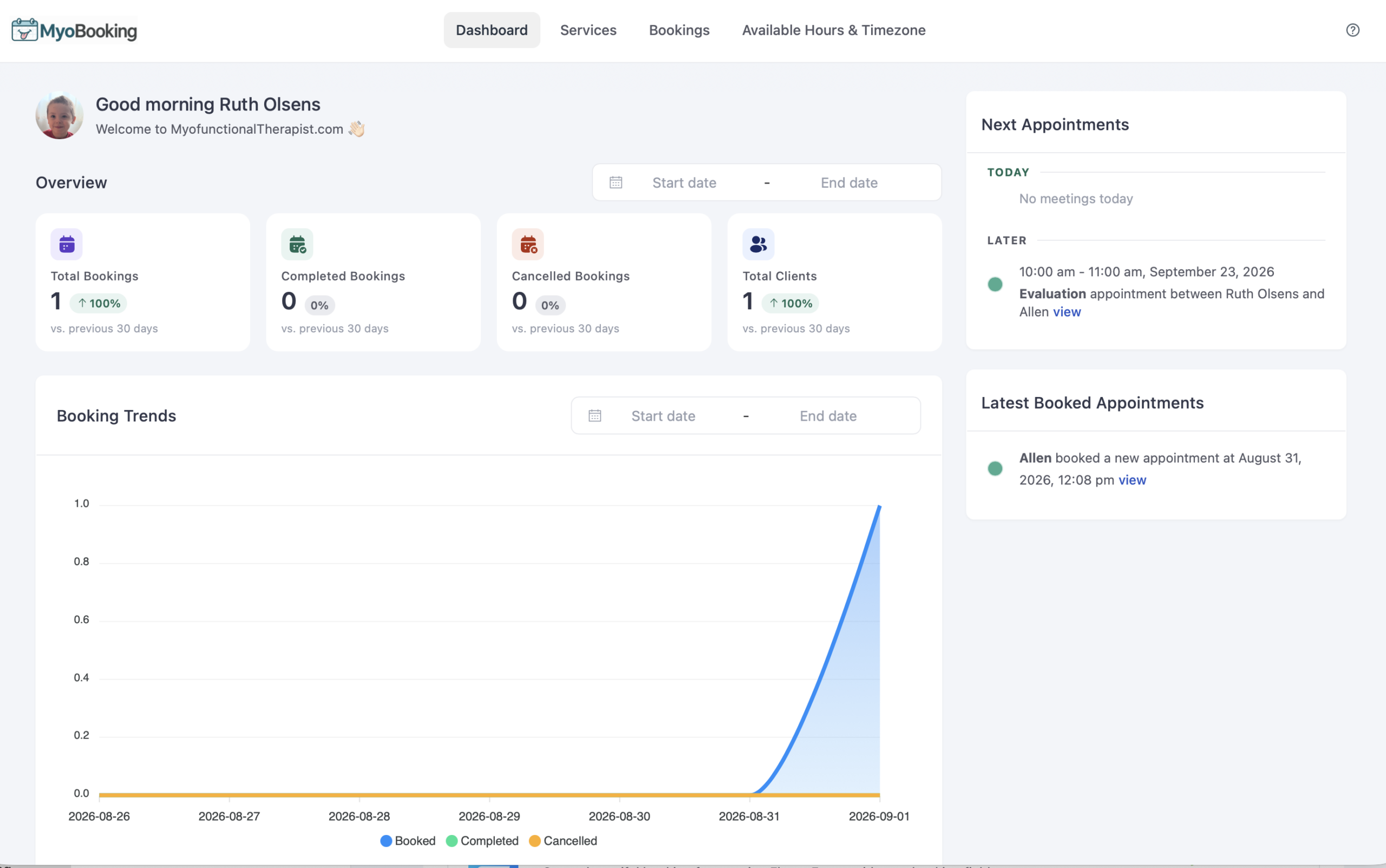
Your booking system is also created and ready for you to add your services and set your available days and times.
Your Directory Profile is automatically created using the information you provided during registration. Your profile is live and ready to be viewed in the provider directory. You can access your profile at any time to edit your information and keep it up to date.
From your dashboard, you can manage:
- Account Information
- Directory Profile
- Booking Calendar
- Services
- Availability
- Client Intake Forms
- Upcoming Appointments
Services
From your Provider Dashboard, go to Calendar & Bookings and select Add a Service.
Enter the details for the service, including:
- Service name
- Description
- Appointment duration
- Available appointment location
- Any other booking options for that service
Once your service is saved, it will be immediately available for clients to book an appointment with you.
Yes. You can offer group sessions where multiple clients can book and attend the same scheduled session.
When setting up a new group service, you can choose the maximum number of participants allowed. Once the session reaches that limit, additional clients will not be able to book.
This can be useful for:
* Group therapy or training sessions
* Classes and workshops
* Courses with scheduled sessions
* Other group appointments
You can offer recurring classes or group sessions on different dates and create as many different classes or group sessions as you need.
Availability
You can create a default schedule for your regular weekly hours and create additional sets of hours for different services, locations, or schedules such as a shortened workweek.
You can also add buffer time between appointments to give yourself time between clients.
For example, you could be available Monday from 9:00 AM–5:00 PM, Tuesday from 12:00 PM–7:00 PM, and Wednesday from 9:00 AM–1:00 PM.
You can also create multiple availability periods within the same day, such as taking an hour off for lunch or having separate morning and afternoon appointment hours.
Select the date and time you want to block off, and clients will not be able to book appointments during that time.
This is useful for vacations, holidays, days off, appointments, or last-minute changes to your schedule. You can also use it to block off just part of a day when you need to be unavailable for a few hours.
For example, you may want clients to be able to book only within the next 2 weeks, or you may want to limit bookings to the length of a 6-week class. You can also allow bookings several months in advance. The choice is up to you and can be adjusted as your scheduling needs change.
Appointment Locations
Available options include:
In-person appointments at your location
In-person appointments at the client’s location
Virtual appointments
Phone appointments
A custom location or meeting option
You can set the location when creating your service. Clients will receive the appointment details in their confirmation email.
If you use Zoom, you can connect your Zoom account to your booking calendar. Once connected, Zoom meetings can be created automatically when clients book, and the meeting link will be included in the appointment confirmation email sent to you and your client.
If you use another video meeting service, you can use the custom location option to provide the appropriate meeting information.
For example, you may work at one office on certain days and another office on different days, with different services or hours available at each location.
Bookings
From your provider profile, where clients can learn more about you and your services and book an appointment directly from your profile.
Through a direct booking link that you can share by email, text, social media, or anywhere else you want.
Through a booking calendar embedded directly on your own website.
These booking methods can all be connected to the same hours and availability, so all appointments are managed in one place and you don’t have to worry about double bookings.
Providers can also create a manual booking directly from their booking dashboard.
Appointment emails include the client’s name, appointment date, time, and location. They are designed to avoid including sensitive, medical, or health information.
There is no limit to the number of appointments that can be booked.
Providers can also easily cancel or reschedule an appointment from their booking dashboard.
When an appointment is canceled or rescheduled, the calendar is automatically updated and the original time becomes available for another booking.
Both the provider and client will receive an email notification when an appointment is canceled or rescheduled.
Your appointments include the date, time, service, location, and client details. You can also view past bookings to keep a record of previous appointments.
Yes. You can export your appointments as a CSV file from your booking dashboard.
The export includes details such as the service, appointment date and time, meeting location, provider, and client contact information. It also includes the appointment status and any cancellation information or notes associated with the booking.
The CSV file can be opened in Excel, Google Sheets, or other spreadsheet programs.
Internal Notes are private and are not shared with the client. They can be used for your own reference or to keep important information related to a specific appointment.
Internal Notes are also included when you export your appointments to a CSV file.
Your Content Goes Here
Your Content Goes Here
Your Content Goes Here
Your Content Goes Here
Your Content Goes Here
Your Content Goes Here